The Front Door You Never Lock: A Ten-Minute Router Reset for the Connected Home
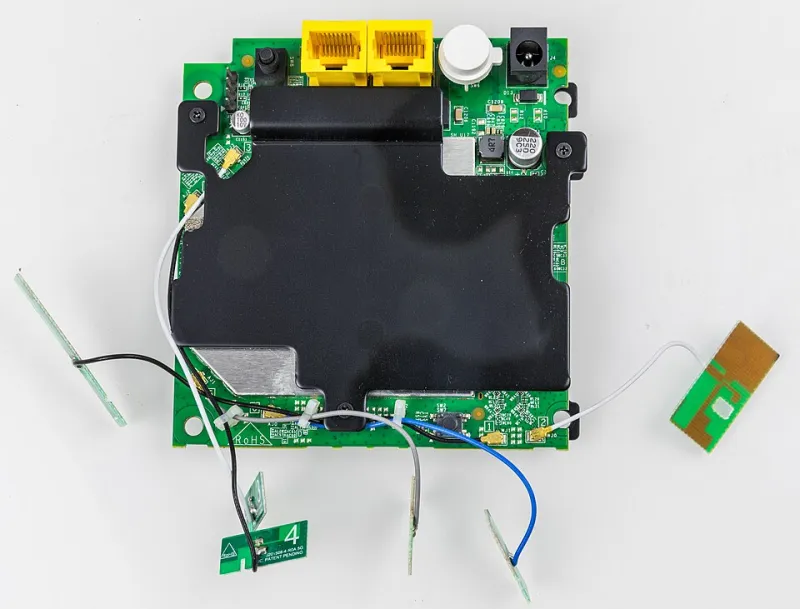
Photo: Raimond Spekking, CC BY-SA 4.0, via Wikimedia Commons
The Device Everyone Forgets
A home router is usually installed in a hurry, tucked behind a television, and never touched again. It arrives with a default administrator password, a manufacturer s firmware, and a set of remote-management features that may be convenient but unnecessary. Then every connected thing in the house depends on it: laptops, phones, tablets, cameras, doorbells, thermostats, printers, and smart speakers.
That makes the router a front door. If an attacker controls it, they can redirect traffic, intercept unencrypted data, change DNS settings, expose connected devices, or use the network as a staging point for other activity. The compromise is often quiet. The internet still works, the streaming services still load, and nothing looks wrong.
At NortonShield Pro, the recommendation is not to become a network engineer. It is to spend ten minutes every few months on the settings that carry the most risk.
Start with the Admin Door
The router has two kinds of access: the Wi-Fi password that lets devices join the network, and the administrator password that lets someone change the router s settings. Many people strengthen the first and ignore the second.
Log in to the router s administration page. The address is often printed on the router label, along with the default username and password. Change the default administrator password immediately. Use a unique passphrase, store it in a password manager, and do not reuse it for email, banking, or any other account. If the router supports multi-factor authentication for administrator access, enable it.
While you are there, check for unused administrator accounts and remote-access features. A router should not be manageable from the public internet unless there is a specific, well-understood need. For most households, remote administration should stay off.
Firmware: The Update You Never See
Firmware is the router s operating system. Manufacturers release updates to fix security flaws, improve stability, and patch vulnerabilities. Many routers can check for updates automatically, but the setting is not always enabled.
Find the firmware or update section of the administration page. If automatic updates are available, turn them on. If not, check manually and install any pending update. Confirm the router model is still supported by the manufacturer. A router that no longer receives firmware updates is a liability, even if it still works.
ISP-provided gateways sometimes update automatically, but that is not guaranteed for every model or every setting. Check the device s administration page or the ISP s account portal for update status. If the hardware is old enough to be out of support, plan to replace it rather than assuming the ISP will handle every risk.
Wi-Fi Encryption and the Guest Network
Use WPA3 if the router and devices support it. If not, use WPA2 with AES encryption and avoid WEP or TKIP, which are outdated and insecure. A strong Wi-Fi password should be long and unique. Hiding the network name is not a meaningful security control, and MAC address filtering adds administrative burden without stopping a determined attacker.
The guest network is more useful than many people realize. Put smart-home devices, visitor devices, and any gadget that does not need access to your main computers on the guest network. Good routers isolate guest traffic from the primary network, which limits what a compromised camera or thermostat can reach. Check that client isolation is enabled if the router offers it.
Remote Administration and Convenience Features
Several convenience features deserve a second look. Remote administration, sometimes called WAN management, should be disabled unless you genuinely need it. Universal Plug and Play, or UPnP, can make it easier for devices to open ports automatically; disable it if you do not rely on it. Port forwarding and a DMZ should be used only when necessary and only with a clear understanding of what is being exposed.
Cloud management features can be useful, but they shift trust to the manufacturer s service. If you use them, protect the account with a strong password and multi-factor authentication. Review which devices and users have access. If a feature is not in use, turn it off.
The Ten-Minute Tune-Up
This routine assumes the router is reachable and the administration password is known. If a firmware download takes longer, finish the update before moving on.
- Locate the router and open its administration page. Confirm you are on the local address, not a lookalike site. Spend two minutes here.
- Change the administrator password if it is still default or weak. Enable multi-factor authentication if available. Spend two minutes.
- Check firmware status. Enable automatic updates or install the pending update. Spend two minutes.
- Confirm WPA3 or WPA2-AES is active. Change the Wi-Fi password if it is short, reused, or shared too widely. Spend two minutes.
- Turn off WPS, remote administration, and UPnP if they are not needed. Check port forwarding and DMZ settings. Spend one minute.
- Confirm the guest network is enabled and isolated for smart devices. Spend one minute.
Write down the date and set a calendar reminder for three months later. The point is not perfection. The point is repetition.
When to Replace the Router
Replace a router when the manufacturer no longer provides firmware updates, when it lacks modern encryption options, or when it cannot separate guest and primary traffic. A router that is five to seven years old may still function, but function is not the same as support. For households with remote work, smart-home devices, or sensitive financial activity, supported hardware is part of the security baseline.
Layered Defense at Home
Router hygiene is foundational, but it is not the whole defense. Keep devices patched, use unique passwords, enable multi-factor authentication on important accounts, and run endpoint protection such as Norton 360 on computers and phones. For home-based businesses, Norton Small Business can add another layer of endpoint and email protection. The router is the front door, but the locks inside the house still matter.
Ten minutes every few months is a modest investment for the device that guards every connected thing you own. The front door deserves at least that much attention.